To convert a Notepad file to PDF, open the .txt file in Notepad, press Ctrl + P, select Microsoft Print to PDF as the printer, click Print, and save the new file. If you would rather skip the print dialog, upload the file to a free txt to pdf converter and download the result in seconds.
Both methods turn plain text into a portable, shareable PDF that looks the same on every device. Below are three reliable ways to do it, plus fixes for the problems people run into most often.
What is a Notepad file, and why convert it to PDF?
A Notepad file is a plain text document saved with the .txt extension. Notepad, the text editor built into Microsoft Windows, stores only characters: no fonts, no bold or italics, no images, and no fixed page layout. That keeps files tiny and easy to open, but it also means the text can reflow, wrap, or display differently depending on the app and screen.
A PDF (Portable Document Format) fixes that problem. It locks the text into pages with a set page size, margins, and font, so every reader sees exactly what you intended. PDFs open in any browser or PDF viewer, print cleanly, and are easier to attach, archive, or submit than a loose .txt file.
Method 1: Use Notepad’s Print to PDF (Windows 10 and 11)
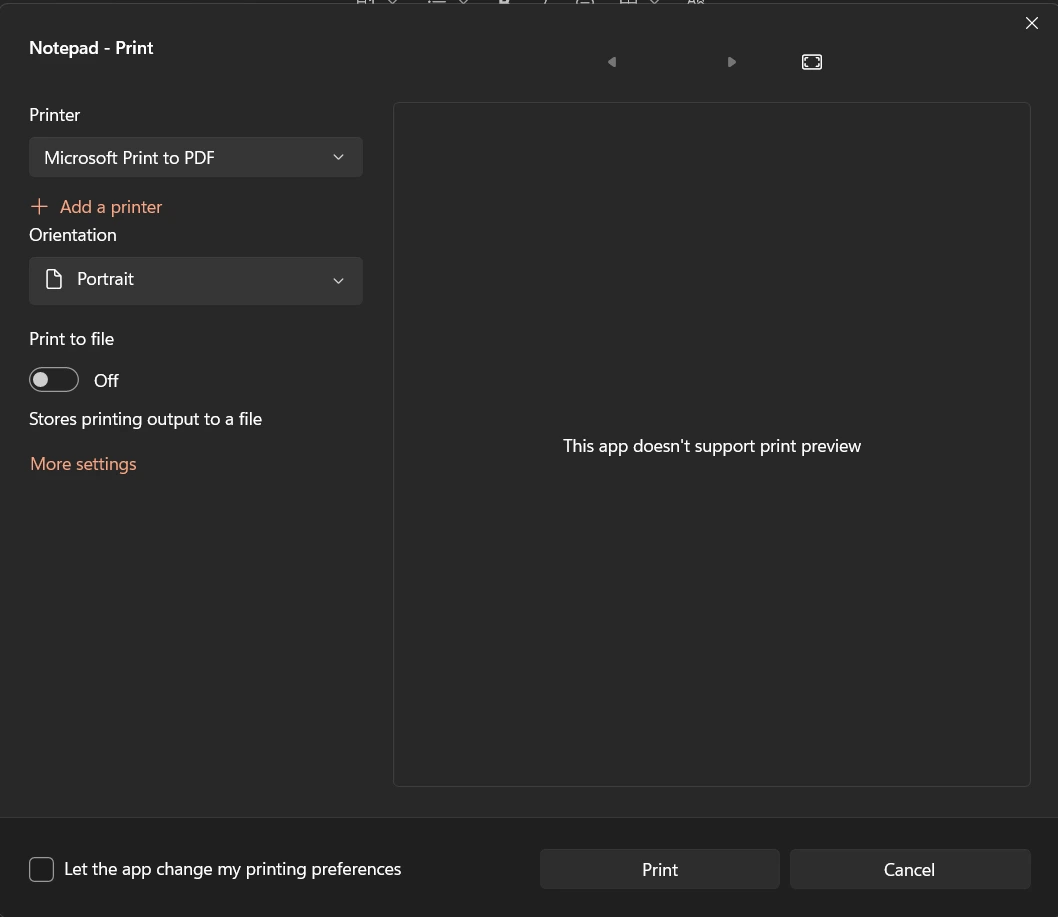
This is the fastest option when you only need a basic PDF and you are on Windows.
- Open the .txt file in Notepad.
- Optional: choose File → Page Setup to set paper size, orientation, and margins.
- Press Ctrl + P to open the print dialog.
- In the printer list, select Microsoft Print to PDF.
- Click Print.
- Type a file name, pick a folder, and click Save.
Microsoft Print to PDF is a virtual printer: instead of sending your text to paper, it writes a PDF file. The print dialog has no font option, so the PDF uses whatever font Notepad is currently set to. Change it first under Format → Font in Windows 10, or in Notepad’s Settings in Windows 11.
Method 2: Use a free online TXT to PDF converter
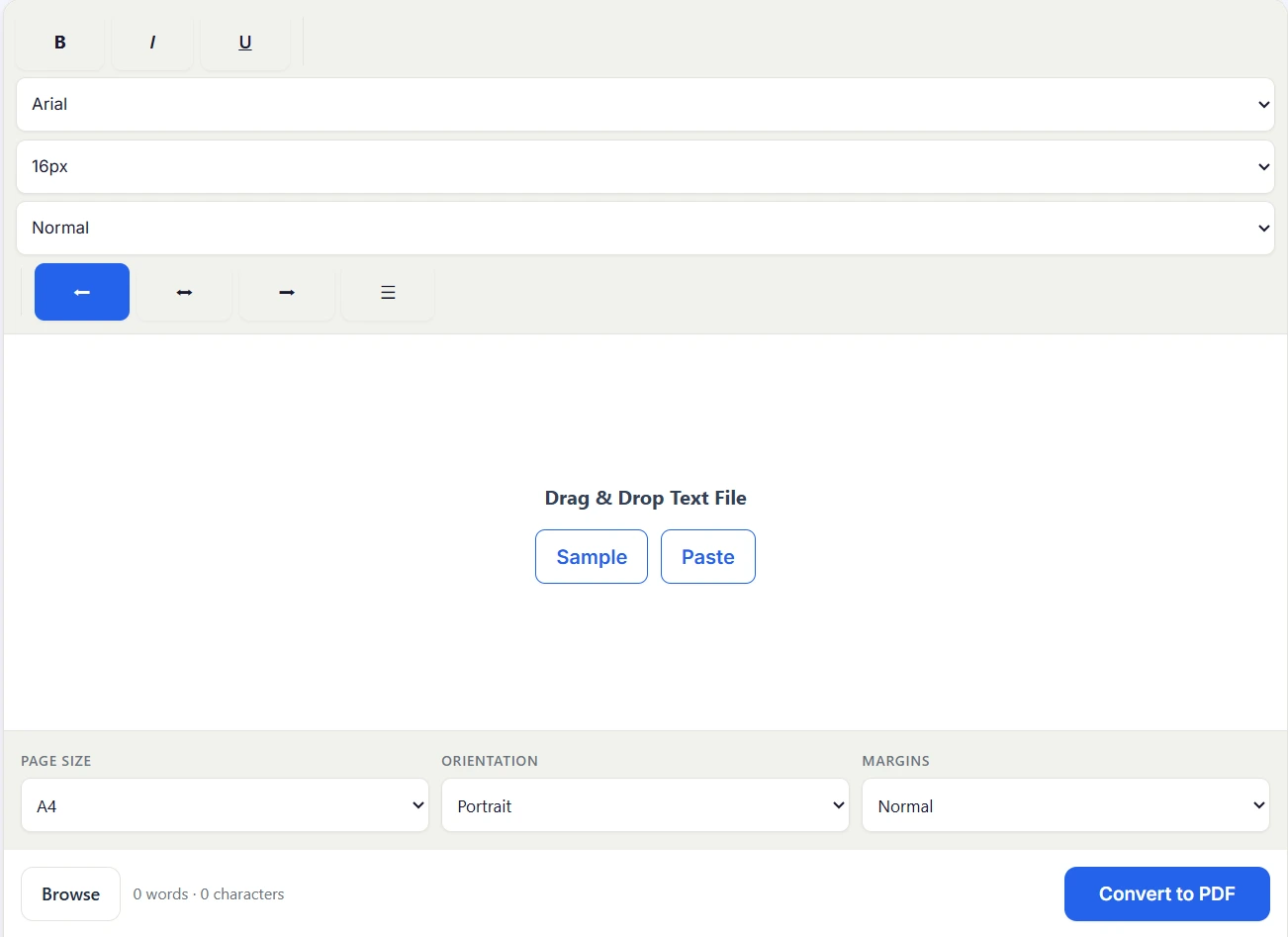
An online converter works on any device and gives you more control over the layout than the print dialog. With our free text to PDF tool, the conversion runs inside your browser, so your text is never uploaded to a server.
- Open the converter.
- Drag your .txt file into the editor, click Browse, or paste the text.
- Choose the font, size, line spacing, and text alignment.
- Set the page size (A4, Letter, or Legal), orientation, and margins.
- Click Convert to PDF. The file downloads straight away.
You can also drop in several Notepad files at once and get them combined into a single PDF with page breaks between each one. There is no account to create, no watermark, and nothing to install.
Method 3: Open the file in Word or Google Docs
If you already use a word processor, you can add formatting first and then export the text as a PDF.
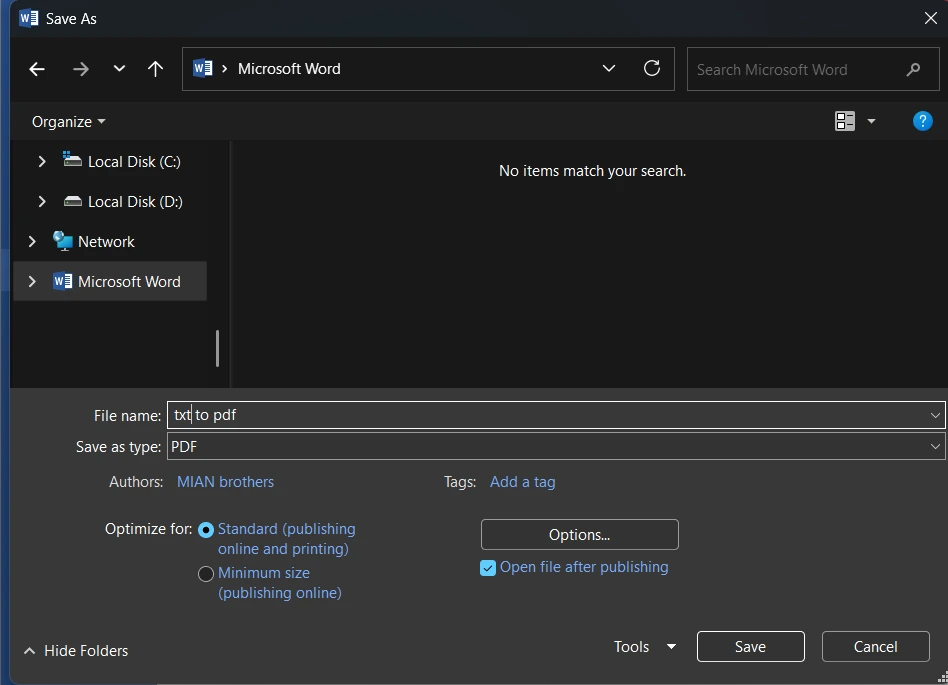
Microsoft Word: open Word, choose File → Open, and select the .txt file (confirm the encoding if the File Conversion box appears). Then choose File → Save As, set the type to PDF, and click Save.
Google Docs: upload the .txt file to Google Drive or open it from File → Open → Upload, then choose File → Download → PDF Document (.pdf).
Use this route when you want headings, bold text, or images in the final document. Because Notepad stores no styling, every bit of formatting has to be added in the word processor.
Which method should you use?
| Method | Best for | Layout control | Software needed |
| Notepad Print to PDF | Quick, one-off conversion on Windows | Basic (page setup only) | None, built into Windows |
| Online TXT to PDF converter | Any device, custom font and layout, batch files | High | None, runs in a browser |
| Word or Google Docs | Headings, images, styled documents | Highest | Word or a Google account |
How to fix common problems
Strange or missing characters. This is usually an encoding mismatch. In Notepad, choose File → Save As, set Encoding to UTF-8, save, and convert again. UTF-8 supports accented letters, symbols, and non-Latin scripts.
Long lines run off the page. Turn on Word Wrap in Notepad (the Format menu in Windows 10, the View menu in Windows 11) and print again.
Microsoft Print to PDF is missing from the printer list. Open Control Panel → Programs → Turn Windows features on or off, tick Microsoft Print to PDF, click OK, and restart if asked.
The text looks too big or too small. Change the font size and margins before converting. Notepad’s Page Setup controls margins, while an online converter lets you set size, margins, and line spacing in one place.
Convert a Notepad file to PDF on Mac, iPhone, and Android
Mac: open the .txt file in TextEdit, press Cmd + P, click the PDF menu in the lower-left corner of the print window, and choose Save as PDF.
iPhone and Android: the quickest route is a browser-based converter. Copy the text, paste it into the editor, and download the PDF straight to your phone.
Conclusion
Converting a Notepad file to PDF takes under a minute. Use Print to PDF for a quick fix on Windows, Word or Google Docs for a styled document, or a free online TXT to PDF converter when you want control over font, page size, and margins on any device.
Frequently Asked Questions
Can I convert a Notepad file to PDF without software?
Yes. Windows includes Microsoft Print to PDF, and online converters work in any browser with nothing to install.
Does converting keep my formatting?
Notepad files contain no formatting, so the PDF holds plain text in the font and layout you choose. If you need bold, italics, or headings, add them in a word processor or in the converter’s editor before you convert.
Can I convert several Notepad files into one PDF?
Yes. A batch-capable converter merges multiple .txt files into one PDF. Print to PDF handles only one file at a time.
Is it safe to convert Notepad files online?
That depends on the tool. Many converters upload your file to a server. Choose one that processes text locally in your browser so it never leaves your device. You can read how we handle data in our privacy policy.
Can I turn a PDF back into a Notepad file?
Yes, if the PDF has selectable text: copy it and paste it into Notepad. Scanned PDFs need OCR software first.